ChatGPT Images 2.5: 7 Features That Actually Make AI Image Creation Easier
ChatGPT Images 2.5 makes AI image creation easier with faster generation, better editing, Sketch, Templates, comments and prompt sharing. Here are 7 features that are genuinely useful for everyday users.
AI image generators have become much easier to use, but one problem remains: getting the image you actually want. You might write a detailed prompt, get something close, and then spend several more attempts fixing small mistakes. Change one part and another part can suddenly look different. That is the problem ChatGPT Images 2.5 is trying to reduce.
OpenAI introduced ChatGPT Images 2.5 on September 8, 2026, with sharper details, more precise editing, better consistency across multiple edits and faster generation. OpenAI says image-generation latency can be up to 50% lower than Images 2.0. The update also adds **Sketch, Templates, image comments and prompt sharing**, giving users more ways to explain what they want instead of relying only on text prompts. But which of these features actually matter?
This guide looks at seven features from a practical point of view, including when you should use them and why they can make AI image creation less frustrating.
1. Faster Image Generation Makes Experimenting Easier
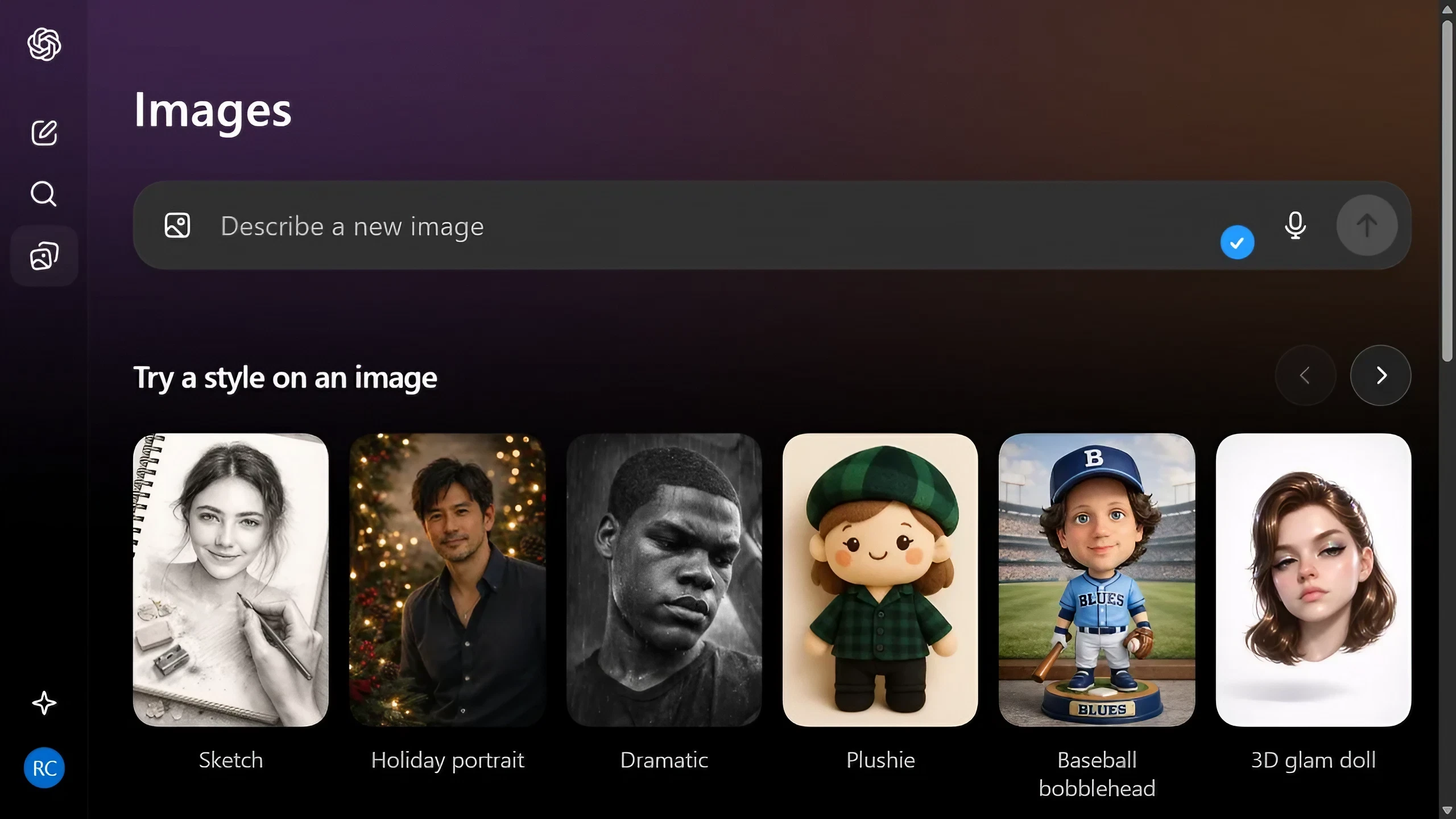
ChatGPT Images 2.5 gives users more control over creating and refining AI-generated images.
The first improvement is simple: speed. OpenAI says ChatGPT Images 2.5 can reduce image-generation latency by up to 50% compared with Images 2.0. That matters because creating a good image rarely happens perfectly on the first attempt. Imagine you are making a blog cover. The first version may have the right subject but the wrong composition.
You might then want to change the lighting, move the subject or make the background cleaner.
If each attempt takes less time, you can experiment more freely. The real benefit is therefore not just faster images. It is faster trial and error. For casual users, that makes AI image creation feel less like waiting for a result and more like having a conversation with a creative tool.
2. More Precise Editing
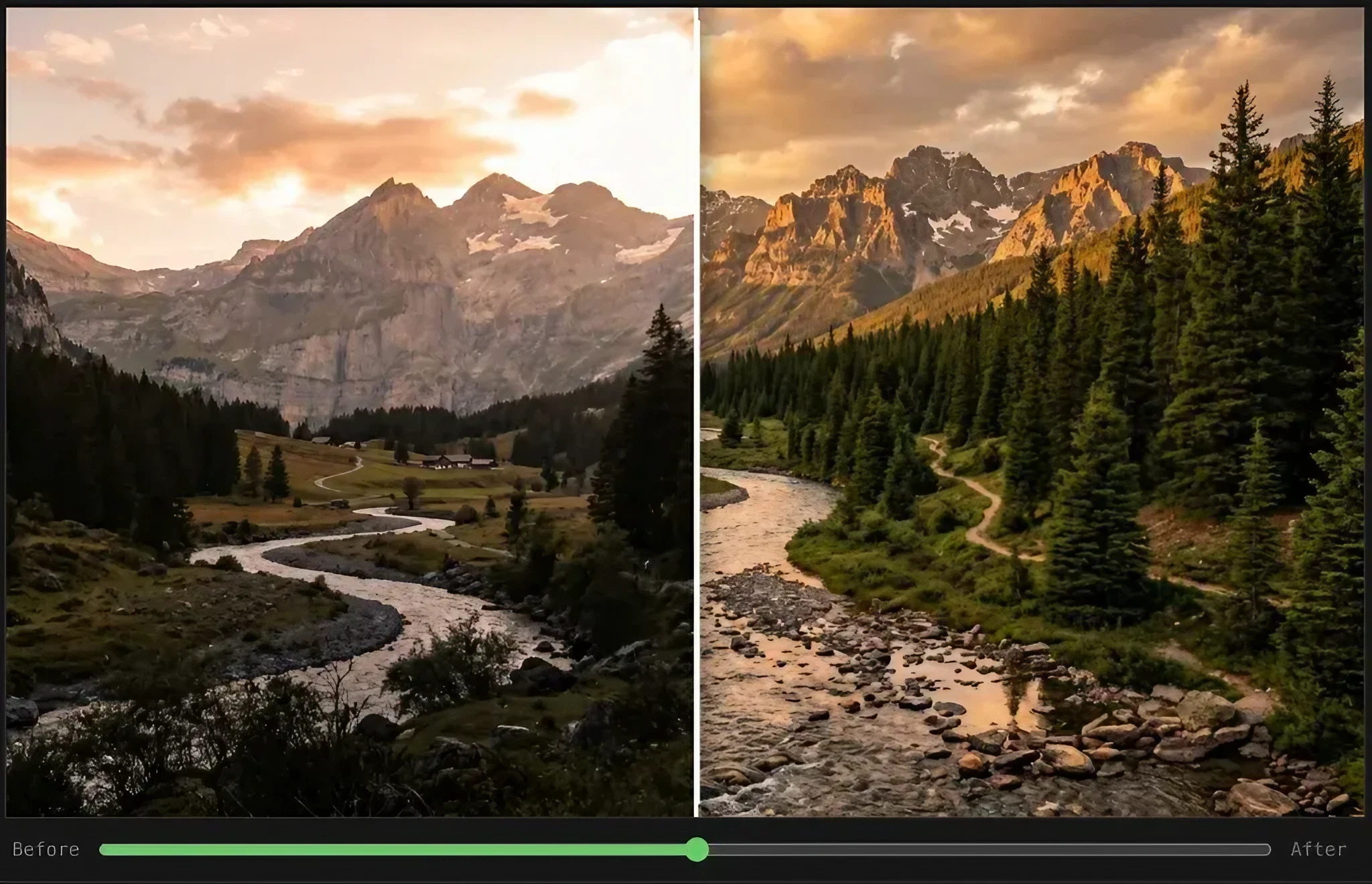
AI image editing is useful when you want to change one part of an image without rebuilding the entire scene.
One of the most useful improvements is more precise editing. Suppose you create a product image and everything looks good except the background. You do not want the product, lighting and composition to change. You only want the background fixed. OpenAI says Images 2.5 is better at making focused changes while keeping other parts of the image intact.
This is important because AI image editing is often more useful than creating a completely new image.You can start with something that is already close to what you need and then ask for one specific change. For example, you could ask ChatGPT to keep the person, clothes and lighting unchanged while replacing the background with a modern office. That approach can save time and reduce unnecessary changes.
3. Keep Improving the Same Image
Another important improvement is consistency across multiple edits. Previously, one of the frustrating parts of AI image generation was that a later change could accidentally alter something that was already correct. OpenAI says Images 2.5 is better at following instructions across multiple editing turns, allowing earlier changes to remain consistent while you continue refining the image.
Think of it like editing a document. You would not want every sentence to change just because you corrected one paragraph. Image editing works better when the same principle applies. This is particularly useful for projects that need several rounds of changes, such as social media graphics, product images, posters or blog illustrations. The biggest practical improvement is control.
4. Turn a Rough Sketch Into an Image
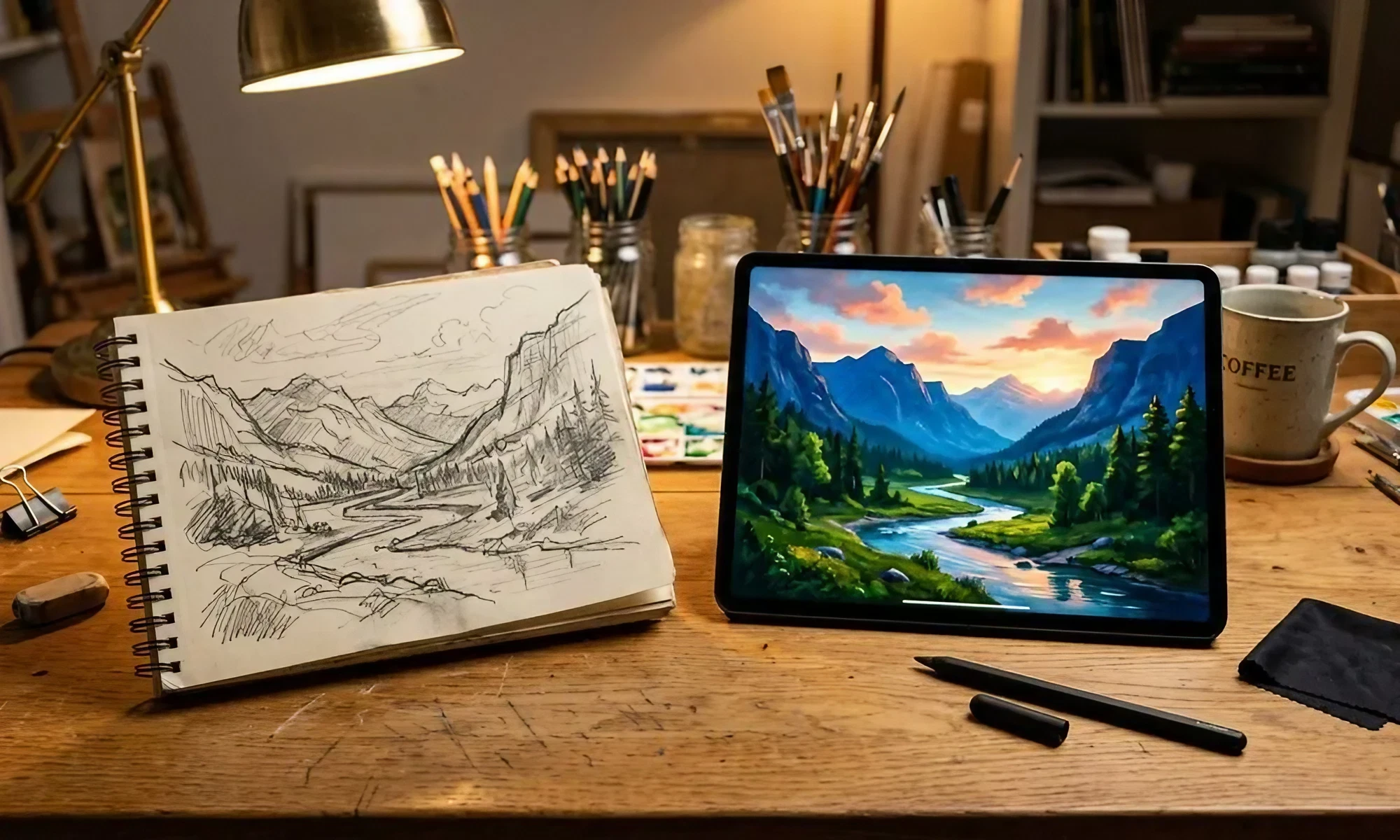
The Sketch feature lets users use a rough drawing as a visual starting point for an AI-generated image.
Sometimes it is easier to draw an idea than describe it. That is where Sketch becomes useful.
OpenAI says users can draw directly in ChatGPT and use the sketch as a reference for the final image. On mobile, users can type @ and select Sketch before creating the image.
Your drawing does not need to be good.
A rough shape can communicate where an object should appear, how a room should be arranged or how a poster should be structured. For example, you could quickly draw a laptop on a desk and tell ChatGPT to turn the sketch into a realistic technology advertisement. This is useful for people who have a clear visual idea but struggle to explain it using words. You are no longer limited to describing your idea. You can show it.
5. Use Templates When You Do Not Know What to Prompt
Writing a good prompt can be difficult when you know what you want to create but do not know how to structure the request. Templates are designed to solve that problem. OpenAI says users can start with formats such as posters or merchandise and then add their own information, design elements and style.
This is especially helpful for beginners. Instead of staring at an empty prompt box and wondering what to write, you can start with a format that already matches your goal. For example, someone creating a promotional poster can begin with a poster template and then provide the product name, message and visual style.
Templates are not about replacing creativity. They remove the blank-page problem. One limitation is that OpenAI's Help Center currently says Templates are not available in Work mode.
6. Comment Directly on an Image
Another small feature could make a big difference during editing: comments. OpenAI says users can add comments directly to images to request more focused changes. On mobile, a generated image can be opened full-screen and edited or commented on.
Imagine that an image is almost perfect but a sign in the background contains the wrong text. Instead of explaining the entire image again, you can point out the problem and ask for that specific detail to be corrected. This becomes increasingly useful as images become more complicated. The less you have to repeat, the easier the editing process becomes.
7. Share the Prompt Behind Your Image
AI images are often easier to recreate when you know the prompt behind them. ChatGPT Images 2.5 lets users share the prompt used to create an image. Another person can then use the idea with their own photos and details.
This could be useful for creators, designers and people who want to share AI experiments with their audience. It also has an educational benefit. Instead of seeing only the finished image, someone can see the instruction that helped produce it. That makes prompt sharing a simple way to learn. The image shows the result. The prompt shows the process.
ChatGPT Images 2.5 vs GPT-Image-2.5: What Is the Difference?
You may see several different names while searching for this update, including chatgpt image 2.5, gpt images 2.5, gpt image 2.5 and gpt-image-2.5. They are related, but they do not all refer to exactly the same thing. ChatGPT Images 2.5 is the image experience available inside ChatGPT. OpenAI also introduced two GPT-Image-2.5 models through its API: GPT-Image-2.5 Flare and GPT-Image-2.5 Sunburst.
For ordinary ChatGPT users, you do not need to understand the API model names to create images. The distinction mainly matters to developers who are building image-generation features into their own applications. So if you searched for “GPT Image 2.5” and landed here, the important thing to know is that ChatGPT Images 2.5 is the consumer-facing experience, while GPT-Image-2.5 refers to the API models.
How to Get Better Results From ChatGPT Images 2.5
You do not need complicated prompts to use ChatGPT Images 2.5. Start by explaining four things: what you want, what should be visible, where it should happen and what style you prefer. Then create the first version.
If the result is close, do not start again immediately. Tell ChatGPT what needs to change. For example, instead of creating a completely new prompt, ask it to keep the subject and composition but make the background brighter. If describing the idea is difficult, use Sketch. If you are making a common format, try a Template. The most useful habit is simple: make small changes instead of changing everything at once.
Decide what you want the image to achieve.
Describe the subject and setting clearly.
Create the first version.
Identify the biggest problem.
Ask for one focused change.
Review the new version.
Repeat only when another change is actually needed.
The Bottom Line
ChatGPT Images 2.5 is not just about making AI-generated pictures look better. The more interesting change is how much more control users have over the process. Faster generation makes experimentation easier. Better editing makes corrections less frustrating. Multi-turn consistency makes longer projects more practical. Sketch gives users another way to communicate an idea, while Templates help beginners get started without building a prompt from scratch.
For someone who creates only an occasional image, these changes may simply make ChatGPT more convenient. For bloggers, creators, designers and small businesses, the improvements could matter much more because saving a few steps repeatedly can save a lot of time. The best way to use ChatGPT Images 2.5 is therefore not to expect a perfect result from one prompt.
Treat it like a creative partner: create, review, correct and refine. That is where the update becomes genuinely useful.
Helpful answers
Frequently Asked Questions
What is ChatGPT Images 2.5?+
ChatGPT Images 2.5 is OpenAI's newer image-generation and editing system in ChatGPT. It brings sharper details, faster generation, more precise editing and better consistency across multiple edits.
Is ChatGPT Images 2.5 available to everyone?+
OpenAI says ChatGPT Images 2.5 is rolling out to ChatGPT, ChatGPT Work and Codex users across desktop, mobile and web. ChatGPT Images itself is available on all ChatGPT tiers.
What is Sketch in ChatGPT Images 2.5?+
Sketch lets you draw a rough idea directly in ChatGPT and use it as a visual reference for generating an image. It is useful when drawing an idea is easier than describing it with words.
Is ChatGPT Images 2.5 faster?+
Yes. OpenAI says image-generation latency can be up to 50% lower than Images 2.0. Actual generation time can vary depending on the image and platform.
What is GPT-Image-2.5?+
GPT-Image-2.5 refers to OpenAI's image-generation models available through the API. OpenAI introduced GPT-Image-2.5 Flare and GPT-Image-2.5 Sunburst alongside ChatGPT Images 2.5.
Can ChatGPT Images 2.5 edit existing images?+
Yes. ChatGPT Images can edit images that you upload, and Images 2.5 is designed to make more precise changes while preserving more of the existing image.
Can I use ChatGPT Images 2.5 on my phone?+
Yes. OpenAI says ChatGPT Images 2.5 is available across desktop, mobile and web. Some features, such as Sketch and image comments, have mobile-specific instructions.