How to Free Up Storage on Your Android Phone Without Deleting Important Files
Running out of storage on your Android phone? These simple steps can remove unnecessary files, clear temporary data and recover space without deleting the photos, videos and apps you actually need.
There is almost nothing more annoying than seeing a "Storage almost full" notification on your phone. You try to take a photo, download an app or save a video, and suddenly your phone tells you there isn't enough space. The good news is that you don't always need to delete your important photos or uninstall the apps you use every day.
Android phones usually collect temporary files, downloaded content, duplicate media and other unnecessary data over time. A few simple checks can often free up a surprising amount of space. The exact menus can look slightly different depending on your phone brand and Android version, but the basic process is similar on most devices. Here is a safe way to clean up your Android phone without accidentally deleting something important.
1. Check What Is Using Your Storage
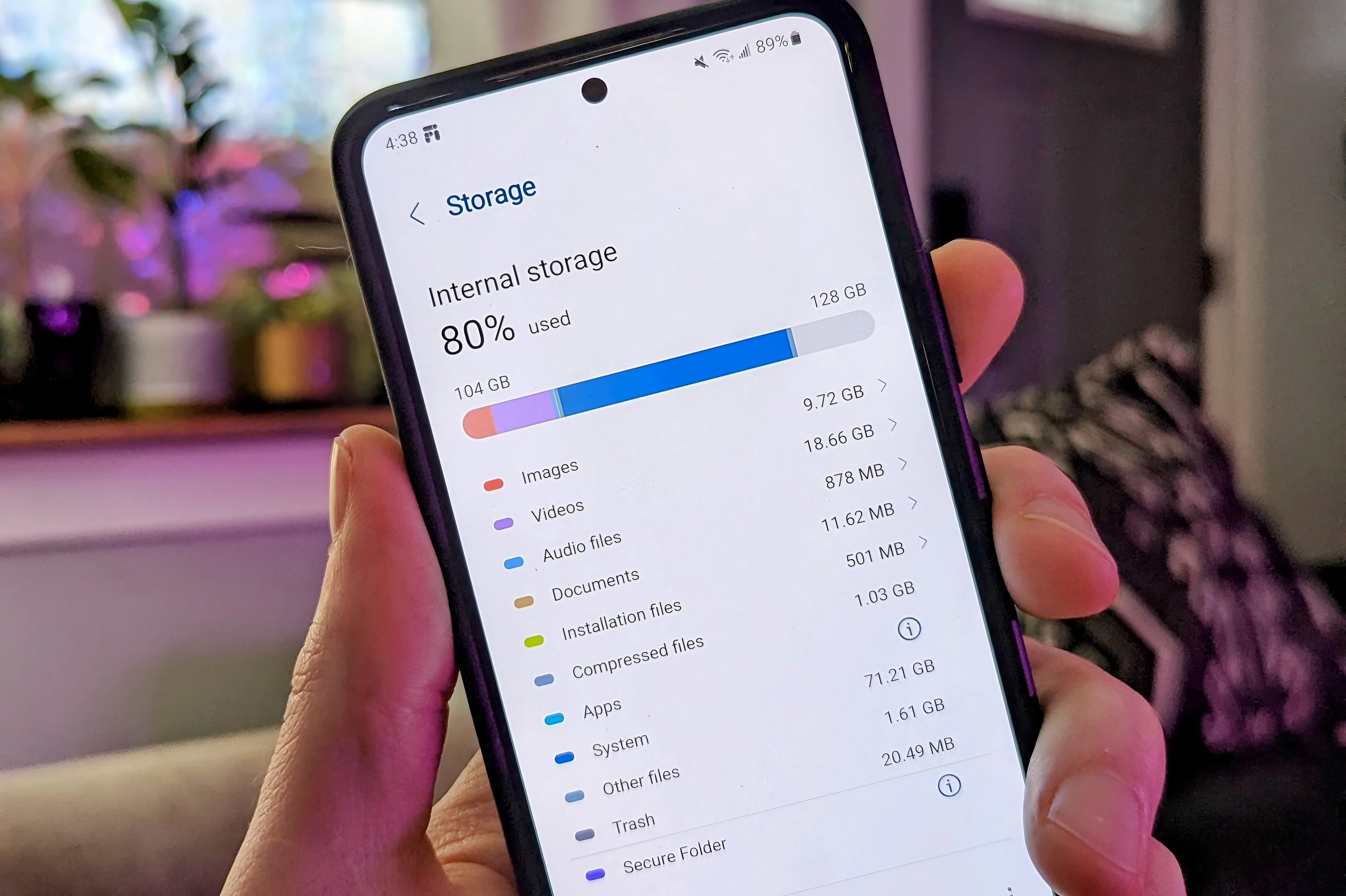
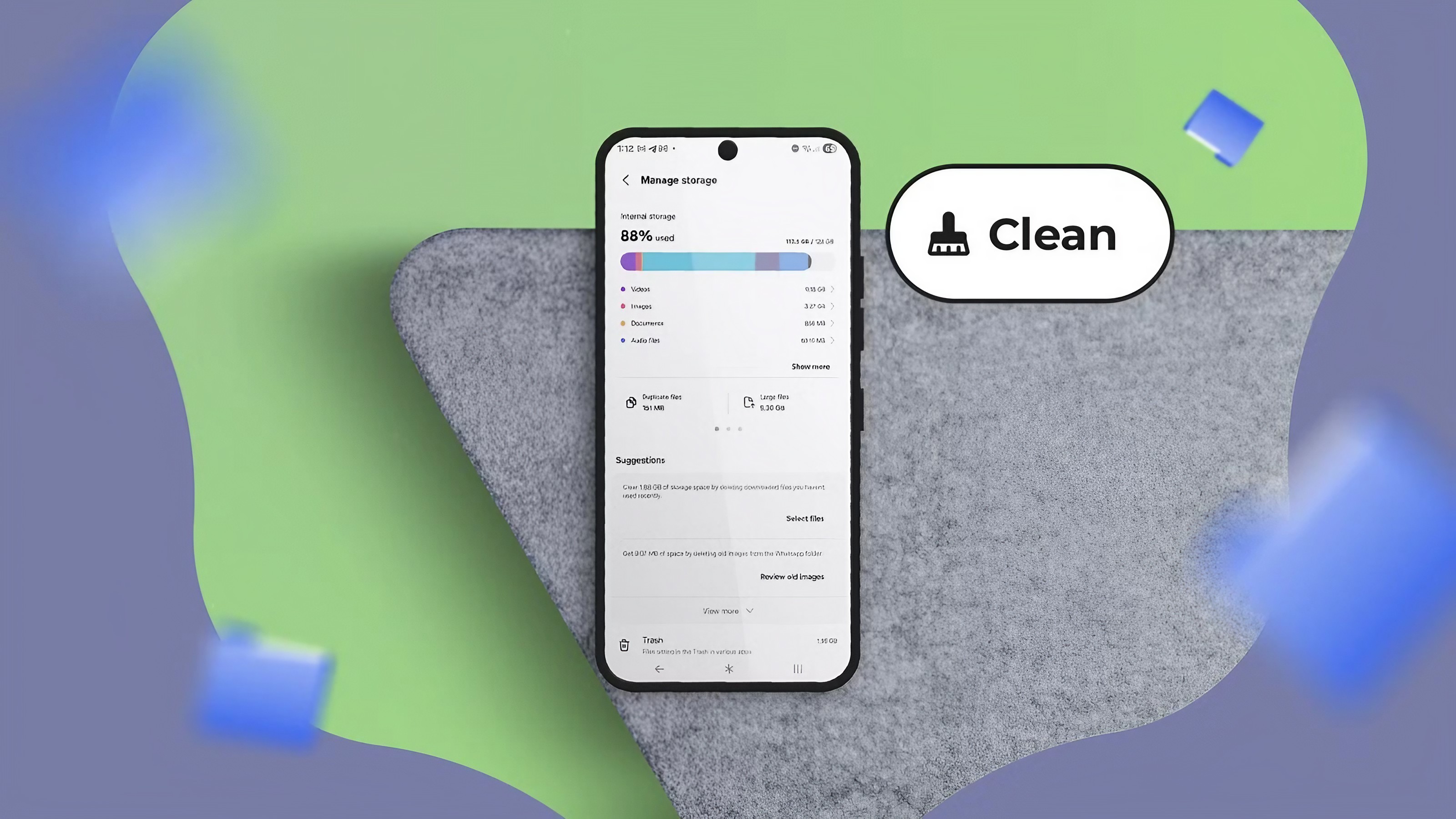
Before deleting anything, find out what is actually taking up space. There is no point deleting a large number of small files if your videos are using most of your storage. On many Android phones, you can check this by opening Settings and searching for "Storage."
You should see a breakdown showing categories such as apps, images, videos, audio, documents and system files. The names and layout may differ between Samsung, Google Pixel, Xiaomi, OnePlus and other Android phones. The important thing is to identify the biggest storage users first. Once you know where your storage is going, you can clean up the areas that will make the biggest difference.
2. Remove Apps You No Longer Use
Unused apps are one of the easiest things to clean up. Many people install an app for a specific reason and then forget about it. Months later, that app may still be sitting on the phone and taking up storage. Go through your installed apps and ask yourself a simple question: "Have I actually used this recently?"
If the answer is no, consider uninstalling it. Don't remove apps simply because they are large. First make sure you don't need them. You should also be careful with apps that contain important locally stored information. If you are unsure, check whether your data is synchronized with an online account before uninstalling anything.
Open Settings.
Open Apps or Apps & notifications.
Review your installed apps.
Select an app you no longer need.
Choose Uninstall.
Repeat for other genuinely unused apps.
3. Delete Large Downloads
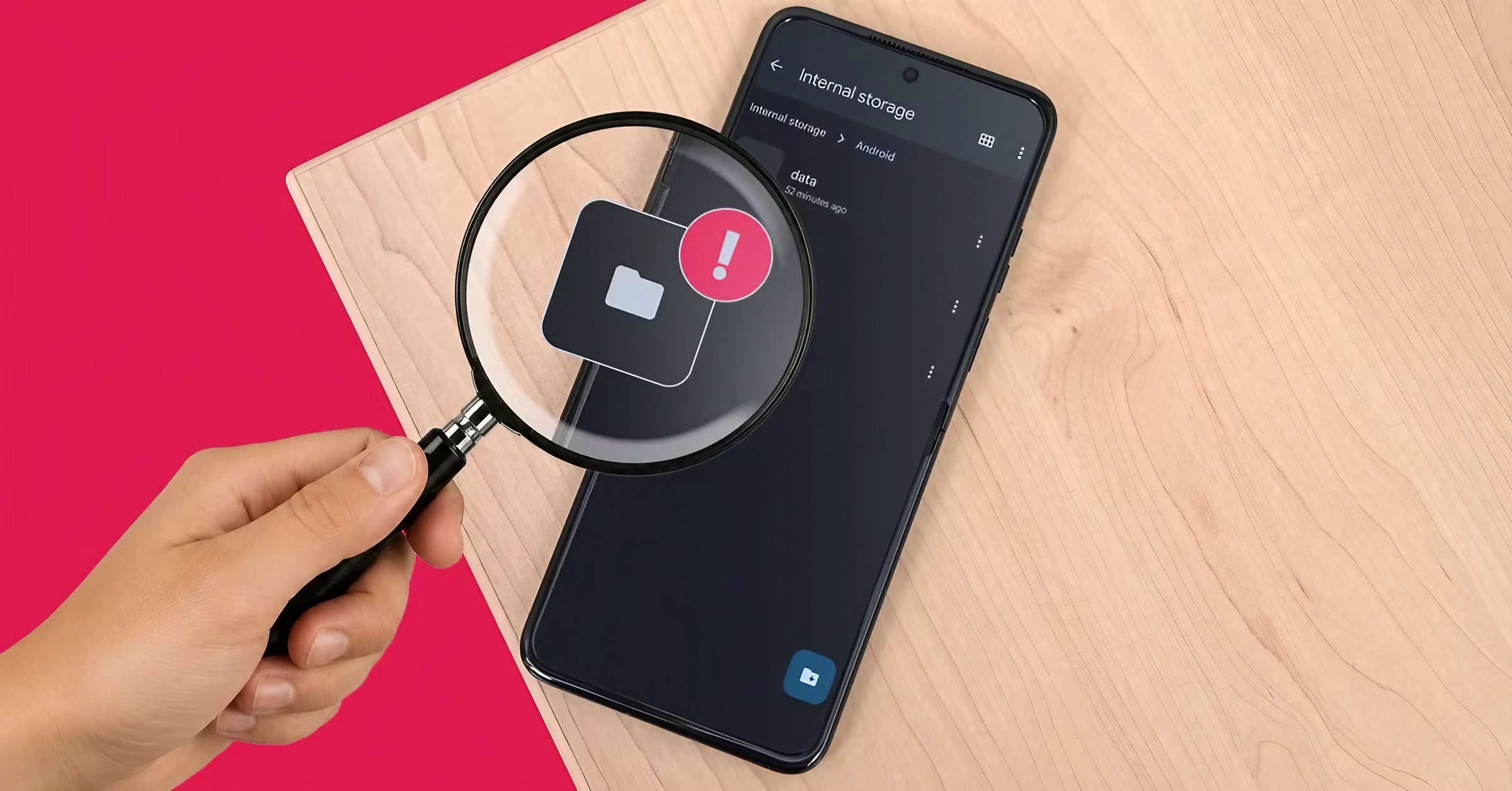
Your Downloads folder can quietly become a storage problem. You may have downloaded PDFs, videos, images, documents or other files months ago and completely forgotten about them. Open your phone's Files app or file manager and look for the Downloads folder.
Sort the files by size if your file manager provides that option. Large videos and documents are usually the best place to start. Before deleting anything, open the file and make sure you don't need it. If it is an important document, move it to cloud storage or another safe location first.
This is one of the safest ways to recover space because you are targeting files you intentionally downloaded rather than deleting random system data.
4. Clear App Cache — But Know What You're Doing
You may have heard that clearing an app's cache can free up storage. A cache is basically temporary data an app keeps so it can load certain things more quickly. Over time, some apps can build up a large cache.
On many Android phones, you can find the option under Settings → Apps → select an app → Storage or Storage & cache. Then you may see an option to clear the cache. Be careful not to confuse "Clear cache" with "Clear storage" or "Clear data."
Clearing an app's storage can remove locally stored information and may sign you out of the app. The exact options depend on your Android version and phone manufacturer. If you are unsure, don't press the option that deletes app data. For most people, checking large apps individually is safer than randomly clearing everything.
5. Clean Up Photos and Videos Carefully
Photos and videos are often responsible for a large part of a phone's storage usage. But deleting them blindly is a terrible idea. Instead, start by looking for videos you no longer need. Videos usually take up much more space than ordinary photos.
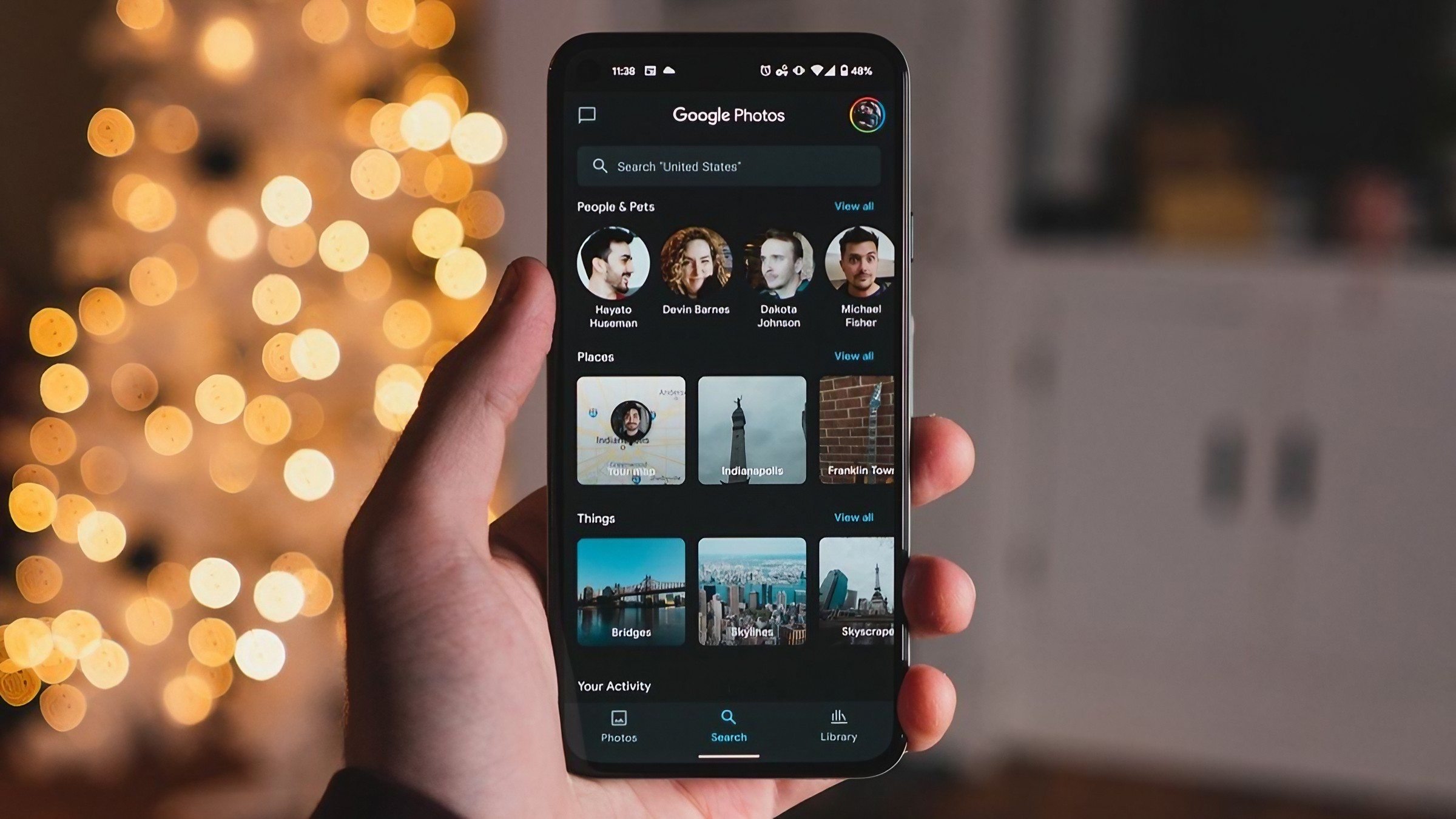
You can also look for screenshots, screen recordings, blurry photos and duplicate images. Google Photos and other gallery apps may offer tools that help identify unnecessary items. If your important photos are backed up, you may also be able to remove local copies from your phone while keeping the backed-up versions online.
However, always confirm that your photos have successfully backed up before deleting local copies. If a photo is important, keep another copy somewhere safe.
6. Check WhatsApp and Messaging Media
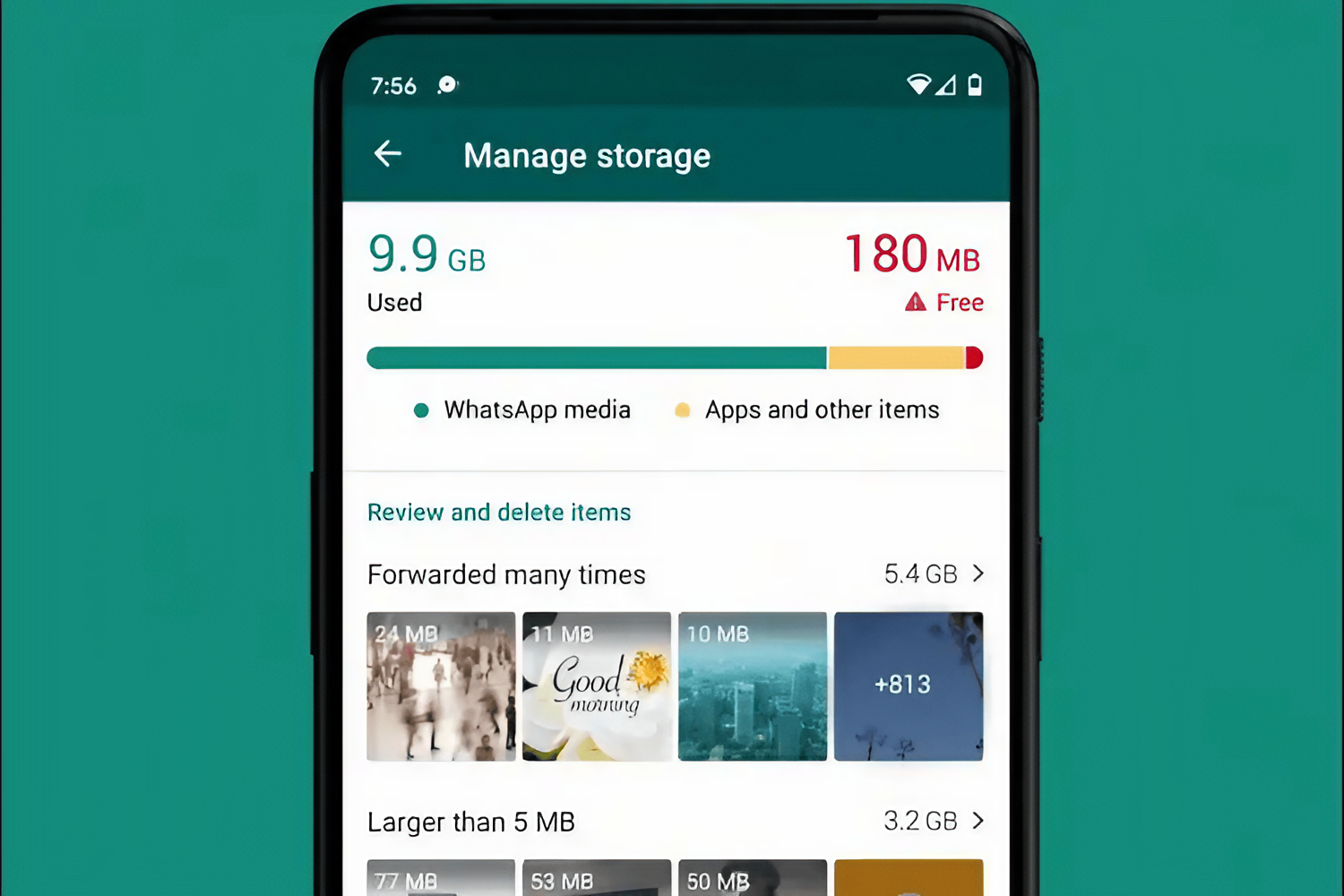
Messaging apps can quietly consume a huge amount of storage. If you use WhatsApp regularly, your phone may contain years of forwarded videos, photos, documents, voice messages and other media. Instead of deleting entire conversations, look at which chats are using the most storage.
WhatsApp includes storage-management tools that can help users review large files and media. This lets you decide what you actually want to keep. For example, you might discover that a large video sent in a group chat is using hundreds of megabytes. If you don't need it anymore, deleting that individual file can recover space without removing the entire conversation.
7. Remove Offline Downloads From Streaming Apps
Streaming apps are convenient because they let you download content for offline use. But those downloads can become surprisingly large. Check apps you use for offline music, movies, TV shows, podcasts or videos.
You may find downloads that you watched weeks or months ago. If you no longer need them offline, remove them from the relevant app. This doesn't normally mean uninstalling the application. You're simply removing locally stored content. If you need the content again later, you can download it when necessary, assuming the service still offers it.
8. Use Android's Built-In Storage Suggestions
Many modern Android phones include built-in tools that can help identify files and apps you may want to remove. Depending on your phone, these tools might suggest unused apps, large files, duplicate files or other items that can be cleaned up.
This is useful because your phone already knows which files are consuming storage. However, don't automatically approve every recommendation. Review the items first. A file that looks unnecessary to your phone might still be important to you. The safest cleanup process is always: review first, delete second.
What You Should NOT Delete
System files you don't recognize.
Folders belonging to apps you still use.
Photos that have not been backed up.
Important documents.
Files you don't understand just because they look large.
App data unless you know exactly what deleting it will do.
How Much Storage Can You Free Up?
There is no fixed number because every phone is different. Someone with years of videos and messaging media might recover several gigabytes. Another person might only find a few hundred megabytes of unnecessary files. The important thing is not to chase a specific number.
Start with the biggest categories. Large videos, unused apps, downloads and offline media are often more useful targets than tiny temporary files. After cleaning, check your storage again. If you have recovered enough space, stop. You don't need to delete everything just because your phone gives you the option.
The Bottom Line
Running out of Android storage doesn't mean you have to delete all your important memories. Start by checking what is actually using your space. Then remove things you genuinely don't need: unused apps, old downloads, unnecessary videos, forgotten offline content and unwanted messaging media.
Be especially careful with photos and app data. If something is important, back it up before deleting it. A few minutes of careful cleanup can make your phone easier to use and give you more room for the things that actually matter.
Helpful answers
Frequently Asked Questions
What is the fastest way to free up storage on Android?+
Check your storage settings first, then look for large videos, unused apps, Downloads files, offline media and messaging-app files. These areas can often provide more free space than deleting small temporary files.
Can I delete cache files on Android?+
You can usually clear an app's cache, but the exact steps depend on your phone. Be careful not to select Clear storage or Clear data unless you understand what information will be removed.
How do I free up space without deleting photos?+
Review unused apps, Downloads, offline streaming content and large messaging files first. You can also use a trusted photo backup service and remove local copies only after confirming that your important photos are safely backed up.
Why does my Android phone keep running out of storage?+
Photos, videos, apps, downloads, messaging media and offline content can gradually consume storage. Regularly reviewing these categories can help prevent your phone from becoming full.
Does deleting unused apps improve Android performance?+
Removing unused apps primarily frees storage. It may also reduce background activity from apps you no longer use, depending on how those apps operate.
Should I use a storage-cleaner app?+
You usually don't need an additional cleaner just to perform basic storage management. Android and many phone manufacturers already provide storage tools. If you install a cleaner, use a reputable app and carefully review what it wants to delete.
#How to Free Up Storage on Your Android Phone Without Deleting Important Files