Why Is My Battery Draining Fast? 7 Things to Check Before Buying a New Phone
Why is my battery draining fast? Before replacing your phone, check these seven common causes and learn how to find what's actually using your battery.
Why is my battery draining fast? If your phone used to last most of the day but now needs a charger by afternoon, the battery itself may not be the only problem. A battery can disappear quickly because of a power-hungry app, a bright display, weak mobile signal, background activity, overheating, or a recent software update. In some cases, the battery may simply be getting old.
The important part is finding the cause before changing a dozen settings or buying a new phone. Android includes battery tools that can show which apps and features are consuming the most power. Google also recommends checking battery usage, updating apps and Android, restarting the phone, and using features such as Adaptive Battery where available.
Here are seven things to check if your phone battery suddenly seems to be disappearing.
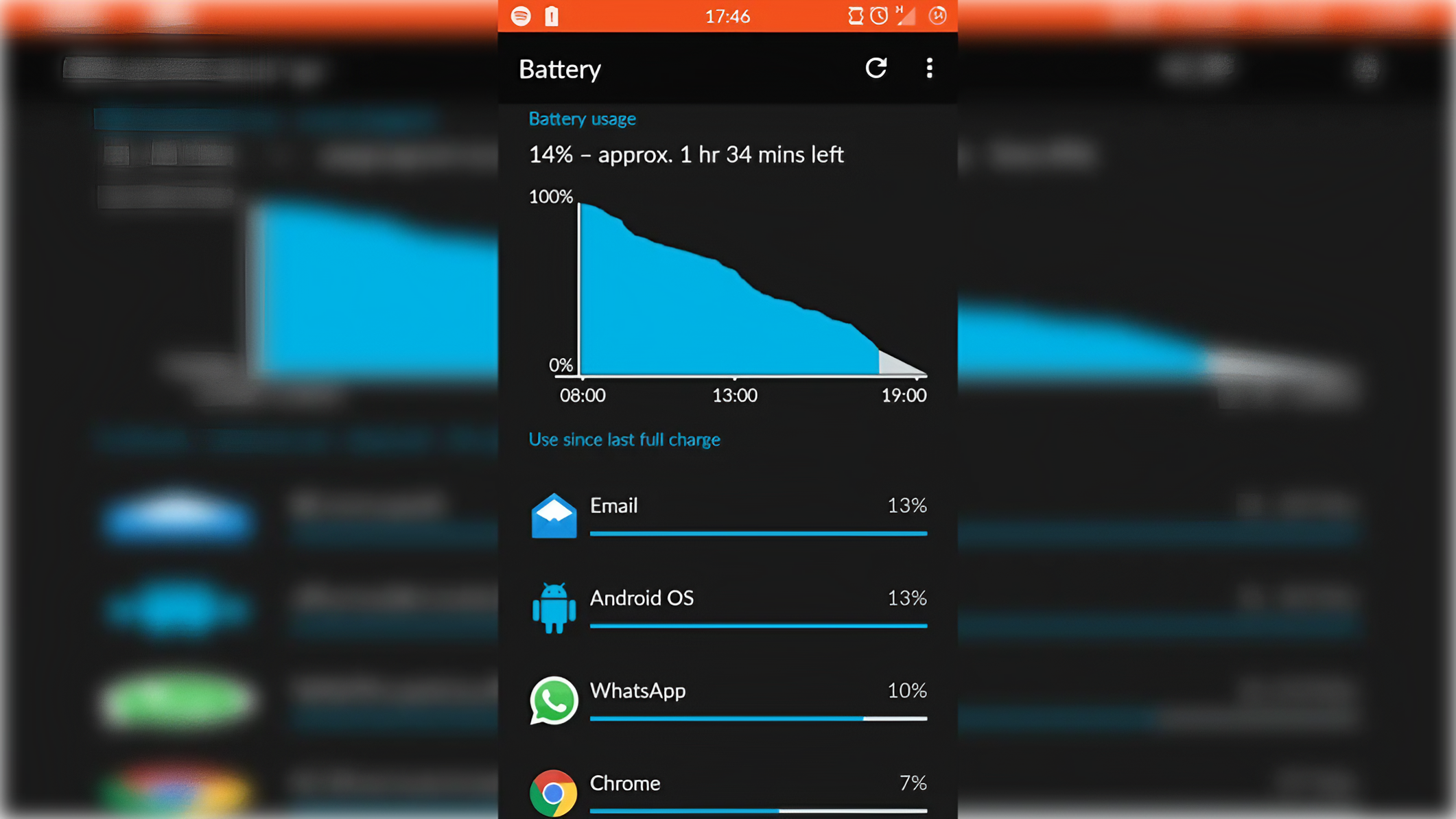
1. Check Which App Is Using the Most Battery
The first thing to check is your phone's Battery Usage screen. Go to Settings > Battery > Battery usage. The exact menu name can be different depending on your phone brand.
Look for an app that is using an unusually large amount of battery compared with how much you actually used it. For example, if you spent 20 minutes on an app but it consumed more battery than an app you used for two hours, that is worth investigating.
An app can continue doing work in the background even when you are not actively looking at it. Google recommends reviewing battery usage and, when appropriate, restricting background activity for apps that consume too much power.
Apps with unusually high background battery usage
Apps you recently installed or updated
Social media apps running heavily in the background
Navigation or location-heavy apps
Games and video apps consuming large amounts of power
2. Check Your Screen Before Blaming the Battery
Your display can be one of the biggest sources of battery consumption, especially if you use a high brightness level or keep the screen on for long periods. If your phone battery drops quickly while you are watching videos, playing games, browsing social media, or using navigation, that does not automatically mean the battery is damaged. Heavy screen use naturally consumes more power.
Try lowering the brightness and shortening the screen timeout. You can also enable automatic or adaptive brightness if your phone supports it. Android's own battery guidance recommends reducing brightness and allowing the screen to turn off sooner when you want to extend battery life.
3. Weak Mobile Signal Can Drain Your Battery
Sometimes the problem is not an app at all. When your phone has a weak cellular signal, it may work harder to maintain a connection. This can become especially noticeable in places such as underground parking areas, elevators, rural locations, or buildings with poor reception.
If you notice unusually fast battery drain in one particular location but much better battery life elsewhere, your network connection could be part of the explanation. When you do not need cellular connectivity, Airplane mode can reduce radio activity. Android also recommends using Wi-Fi instead of mobile data when possible and limiting connectivity features you are not using. :
4. Check Location, Bluetooth and Hotspot Usage
Location, Bluetooth, and mobile hotspot features can all increase power consumption when they are being used continuously. This does not mean you should permanently turn them off. Instead, look at how you actually use them.
If you leave a hotspot running after you have finished sharing your connection, turn it off. If an app does not need constant location access, review its permissions. And if Bluetooth is connected to a device you are not using, disconnecting it can help reduce unnecessary activity. The goal is not to disable every useful feature. It is to stop services from running when you do not need them.
Mobile hotspot
GPS and location services
Bluetooth connections
Long periods of mobile-data use
Navigation running in the background
5. Your Phone May Be Hotter Than Normal
Heat is an important battery warning sign. Android's official guidance says a phone's battery drains much faster when the device is hot, even when it is not being used. Excessive heat can also damage the battery over time.
Think about what your phone was doing before you noticed the temperature increase. Was it running a demanding game? Sitting in direct sunlight? Charging while performing heavy tasks? Using navigation for a long time?
If the phone is repeatedly getting hot during normal light use, check Battery Usage for an unusual app or system process. If the heat continues without an obvious reason, contacting the phone manufacturer may be the safer option.
6. Did the Battery Problem Start After an Update?
If your battery suddenly became worse immediately after a software update, do not assume the update permanently damaged your phone. Google says that increased battery drain can be normal for a short period after a software update because the phone may be working in the background to finish setup and optimization.
That does not mean every battery problem after an update is normal. If the problem continues for several days, check Battery Usage, install available app updates, restart the phone and look for another system update.
Recent reports have also highlighted battery-drain problems on some Pixel devices, showing why it is important to distinguish a temporary post-update change from a persistent software bug.
After an update:
Give the phone some time to finish background optimization.
Restart the phone.
Check Battery Usage.
Update your installed apps.
Check for another available system update.
If the problem continues, contact the phone manufacturer.
7. Your Battery May Simply Be Getting Old
If you have checked your apps, screen, connectivity, heat and software and the battery still disappears unusually quickly, the battery itself may be reaching the end of its useful life. Rechargeable batteries naturally lose capacity as they age. That means a phone that once lasted all day may eventually need to be charged more often even though your usage has not changed.
This is especially worth considering if the phone is several years old and you have noticed other signs such as unexpected shutdowns, rapid percentage drops or a battery that no longer lasts anywhere near as long as it used to. Some phones provide battery-health or diagnostic tools. For example, Google says Pixel 6 and later devices have Battery diagnostics that can help users investigate battery-drain problems.
The AnantaGo Battery Test: Find the Cause Before Changing Settings
The biggest mistake people make when troubleshooting battery drain is changing everything at once. They turn off Bluetooth, reduce brightness, disable location, uninstall apps and activate Battery Saver — and then they do not know which change actually helped.
A better approach is to diagnose the problem in order. First, check Battery Usage. Then check screen usage. Next, think about signal strength, location, hotspot use and heat. Finally, consider whether the problem started after an update or whether the battery is simply old.
This approach takes a little longer, but it gives you a much clearer answer. If one app suddenly appears at the top of Battery Usage, you have a useful lead. If the screen is consuming most of the power, changing display settings makes more sense. If the phone loses a large percentage while sitting unused, background activity or a software issue deserves more attention.
What you notice
Most likely thing to check
Battery drops while using the phone
Screen brightness and demanding apps
Battery drops while phone is idle
Background apps and system activity
Phone becomes very hot
Heavy apps, background activity or software issue
Drain happens mainly in one location
Cellular signal
Drain started after an update
Post-update optimization or software issue
Old phone suddenly has poor battery life
Battery aging
One app dominates Battery Usage
That app's background activity
What You Should Not Do First
Factory-reset the phone
Delete all your apps
Turn off every connectivity feature
Keep forcing essential system apps to stop
Buy a new phone without checking battery usage
Repeatedly drain the battery to 0% to “calibrate” it
A factory reset should be a last-resort troubleshooting step, not the first response to normal battery drain. Google warns that a factory reset removes the phone's data and recommends backing up important information before doing it.
Final Answer: Why Is My Battery Draining Fast?
So, why is my battery draining fast? There is rarely one universal answer. The most useful first step is to check Battery Usage and find out where the power is actually going. From there, investigate the screen, apps, background activity, mobile signal, connectivity features, heat and recent software updates.
If the problem appeared shortly after an update, give the phone some time and make sure both Android and your apps are up to date. If the phone is old and the battery has clearly lost capacity, a battery replacement may make more sense than replacing the entire phone.
The key lesson is simple: do not treat every battery-drain problem as a dead battery. Find the cause first. Then fix the cause.
Helpful answers
Frequently Asked Questions
Why is my battery draining fast even when I'm not using my phone?+
Fast idle drain can be caused by background apps, poor cellular signal, location services, system activity or a software problem. Start by checking Settings > Battery > Battery usage to see what is consuming power.
Why is my phone battery draining fast after an update?+
Some additional battery use immediately after a software update can be temporary because the phone may be completing background optimization. If unusual drain continues for several days, check Battery Usage, update your apps and install any available system updates.
Does screen brightness drain phone battery?+
Yes. A bright display and long screen-on time can consume significant power. Reducing brightness, using automatic brightness and shortening screen timeout can help extend battery life.
Can a weak signal drain my phone battery?+
Yes. Maintaining a cellular connection in areas with poor reception can contribute to higher battery consumption. If battery drain is noticeably worse in one location, your network connection may be part of the problem.
How do I find which app is draining my battery?+
Open Settings, go to Battery and select Battery usage. Review the apps listed there and look for unusually high battery consumption, especially background usage. Menu names can vary between Android manufacturers.
Should I factory reset my phone because the battery is draining fast?+
No. A factory reset should generally be considered only after simpler troubleshooting has failed. It removes your data and apps, so back up important information before performing one.
Does heat make a phone battery drain faster?+
Yes. Android's official guidance says battery drain increases when a phone becomes hot, even when it is not being used. Repeated overheating can also damage the battery over time.