Google Play Store Not Working Today? 7 Ways to Fix Common Android Download and Update Problems
Google Play Store users can sometimes face download, update and server errors. Here's what the 500 error means and what you can try when the Play Store stops working.
When Google Play Store suddenly stops downloading an app, the first thing many people check is their internet connection. But sometimes your Wi-Fi is perfectly fine.
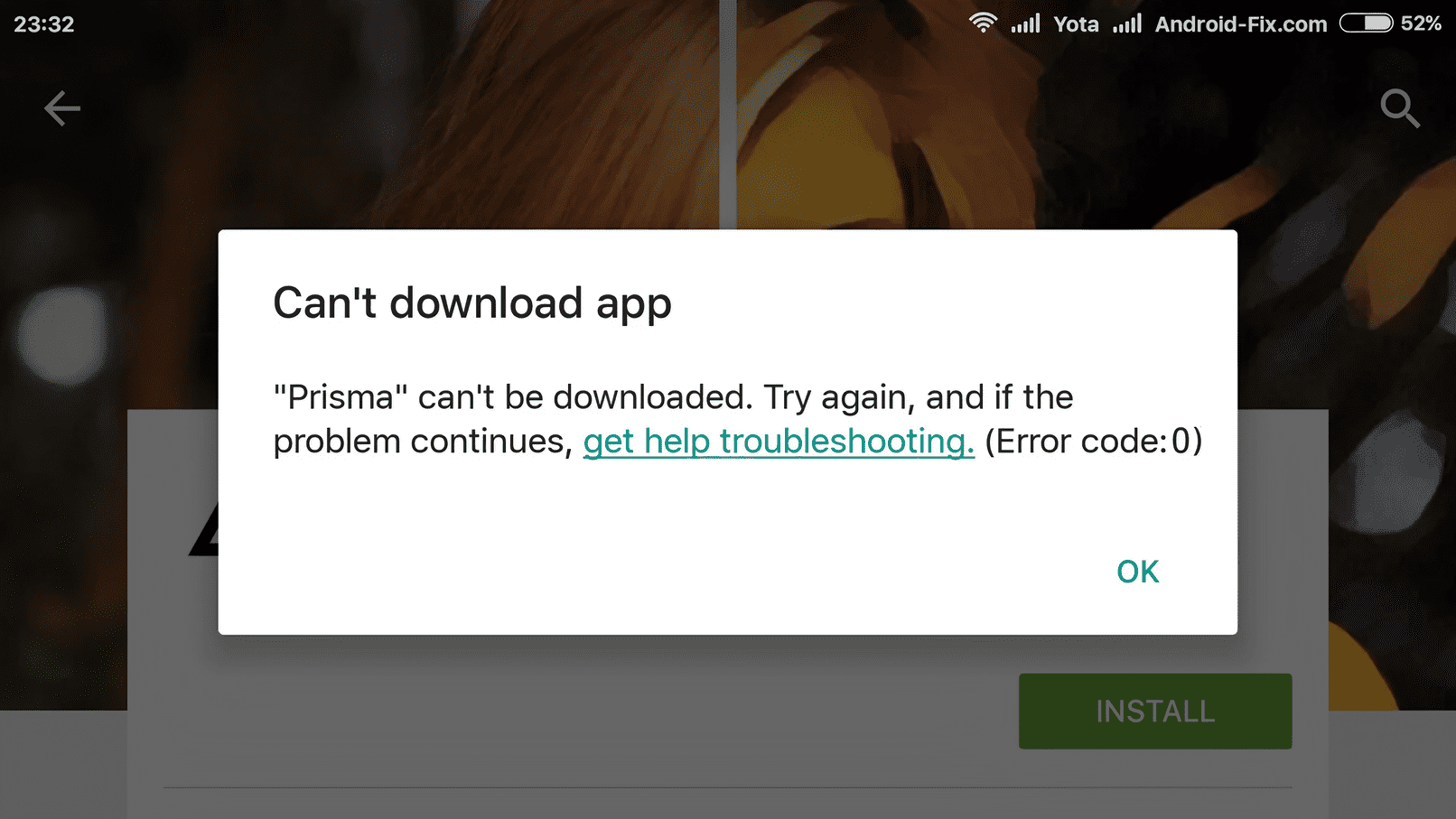
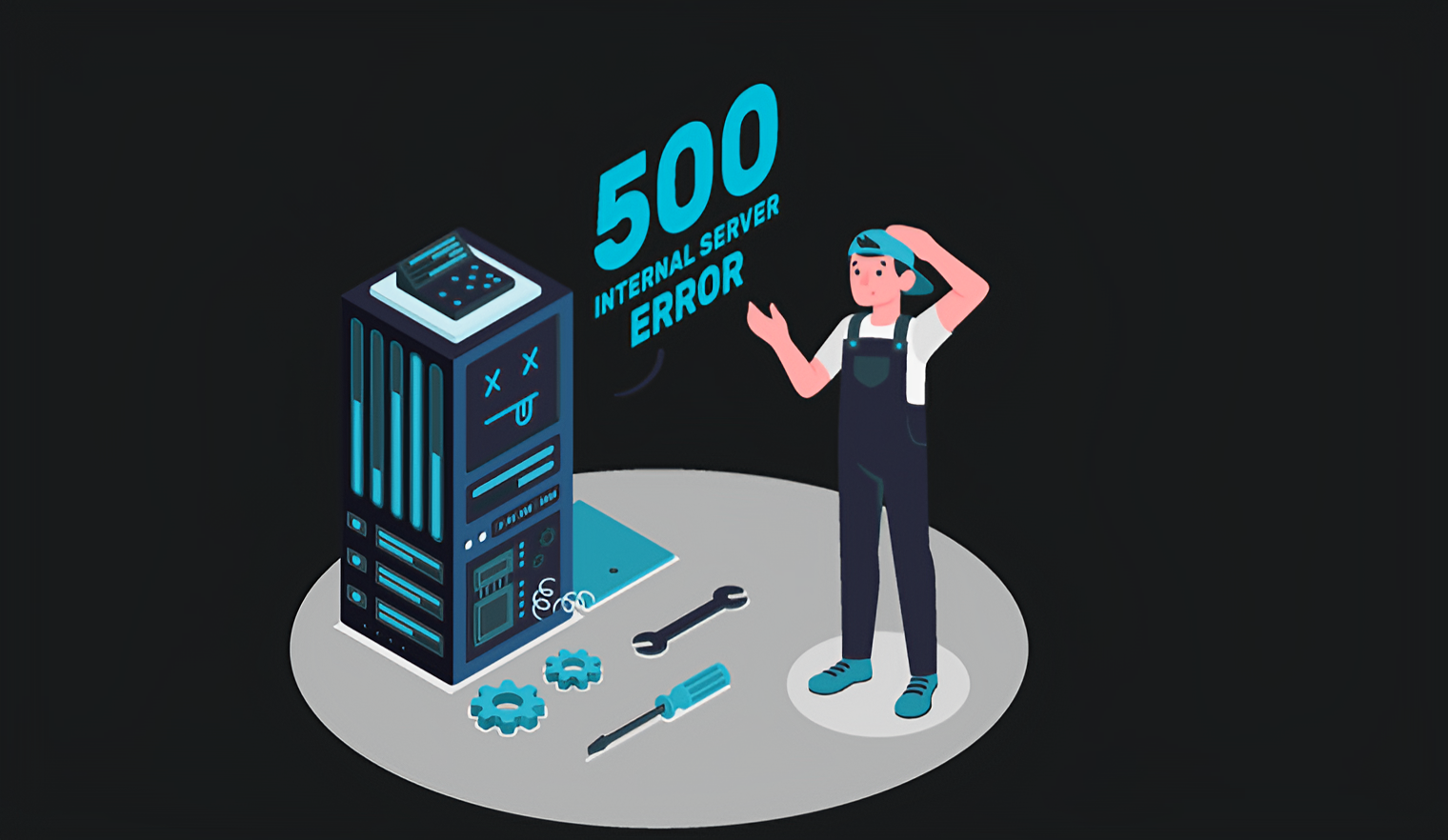
On September 1, 2026, Android users in India reported problems accessing Google Play, including a 500 error and difficulties downloading or updating applications. Reports indicated that the problem was not simply caused by users' internet connections. A 500 error generally points to a problem on the service's side rather than a fault with your phone.
That creates an important question: what should you actually do when Google Play Store isn't working? The answer depends on what is causing the problem. If Google itself is experiencing an outage, repeatedly changing settings on your phone won't fix the company's servers. But if the problem is limited to your device, several simple fixes can get the Play Store working again. Here's how to figure out which situation you're dealing with and what to try.
First, Check If Google Play Is Actually Down
Before changing anything on your phone, check whether other people are experiencing the same problem. This is the step many people skip. If thousands of users are reporting problems at the same time, the issue may be on Google's side. In that situation, clearing your phone's data or changing network settings may accomplish nothing.
You can check Google's Play status information and user-reporting services to see whether there is a wider problem. Google maintains an official status dashboard for Play services, while outage-monitoring services can show reports from users experiencing problems.
If the problem is widespread, the best solution may simply be to wait for Google to restore the service. But if other people can use the Play Store normally and your phone cannot, continue with the following fixes.
1. Check Your Internet Connection
Even when the Play Store is working normally, a weak or unstable connection can prevent apps from downloading. Open another website or app that requires an internet connection. If everything else is also slow, switch between Wi-Fi and mobile data and try again.
If you're connected to Wi-Fi, restarting the router can also help. However, don't spend too much time troubleshooting your internet if other apps and websites are working normally while Google Play alone is showing a 500 error. That is an important clue that the problem may not be your connection.
Open another website or online app.
Check whether it loads normally.
Switch from Wi-Fi to mobile data.
Try the Play Store again.
If other services work but Play Store doesn't, check for a wider Google Play problem.
2. Restart Your Android Phone
It sounds too simple, but restarting your phone can clear temporary software problems. Android services run continuously in the background, and occasionally one of them can become stuck. A restart gives those services a fresh start.
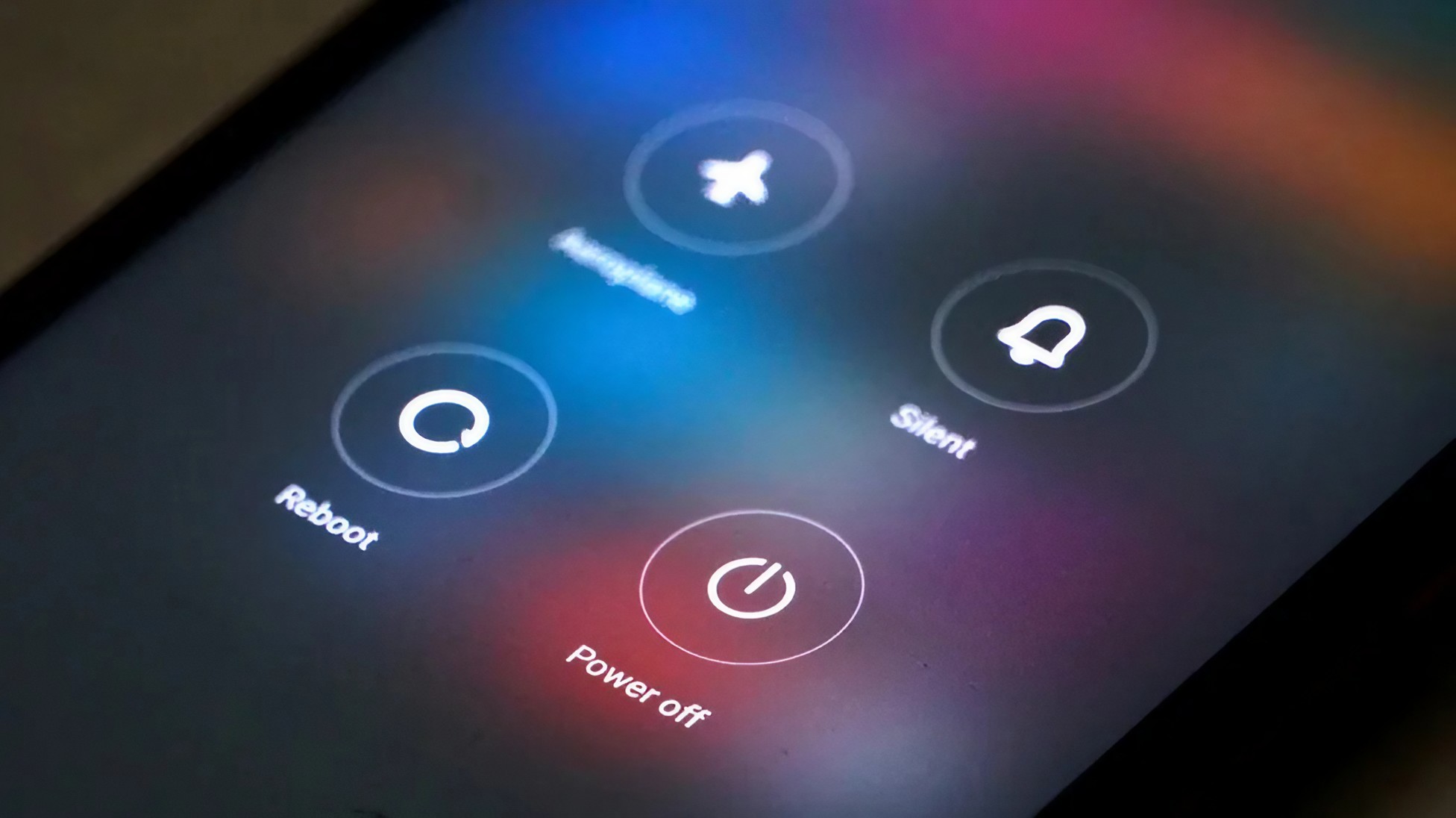
Hold the power button and choose the restart option available on your phone. After the phone starts again, open Google Play Store and try the download or update one more time. If the same server error appears again, move to the next step rather than repeatedly restarting the phone.
3. Check Your Phone's Date and Time
Your phone's date and time may seem unrelated to app downloads, but incorrect system time can sometimes interfere with secure connections and online services. Open your Android settings and look for Date & Time.
If automatic date and time are available, turn them on.
This allows your phone to synchronize its clock instead of relying on a manually entered time. After making the change, close the Play Store and open it again. Then try the download or update.
4. Clear the Google Play Store Cache
The Play Store stores temporary files called cache data. These files can help the app load information faster, but temporary data can occasionally become corrupted or cause unusual behavior.
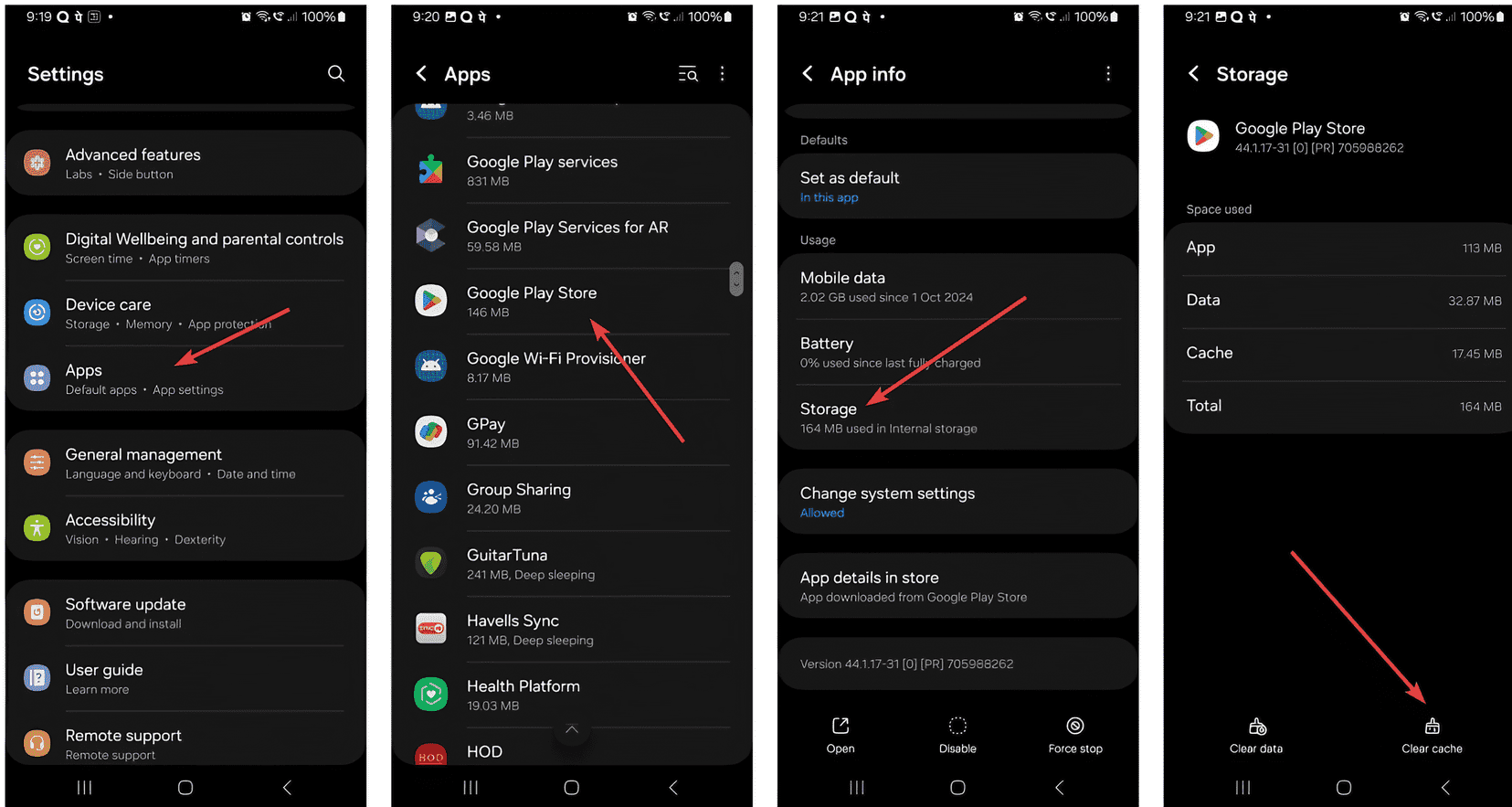
Android lets you clear the Play Store's cache without deleting your installed applications. Open Settings and find Apps or Applications. Select Google Play Store, open its Storage section and look for the option to clear the cache. The exact wording can vary depending on your phone manufacturer and Android version.
After clearing the cache, open the Play Store again. If the problem was caused by temporary app data, this may be enough to solve it.
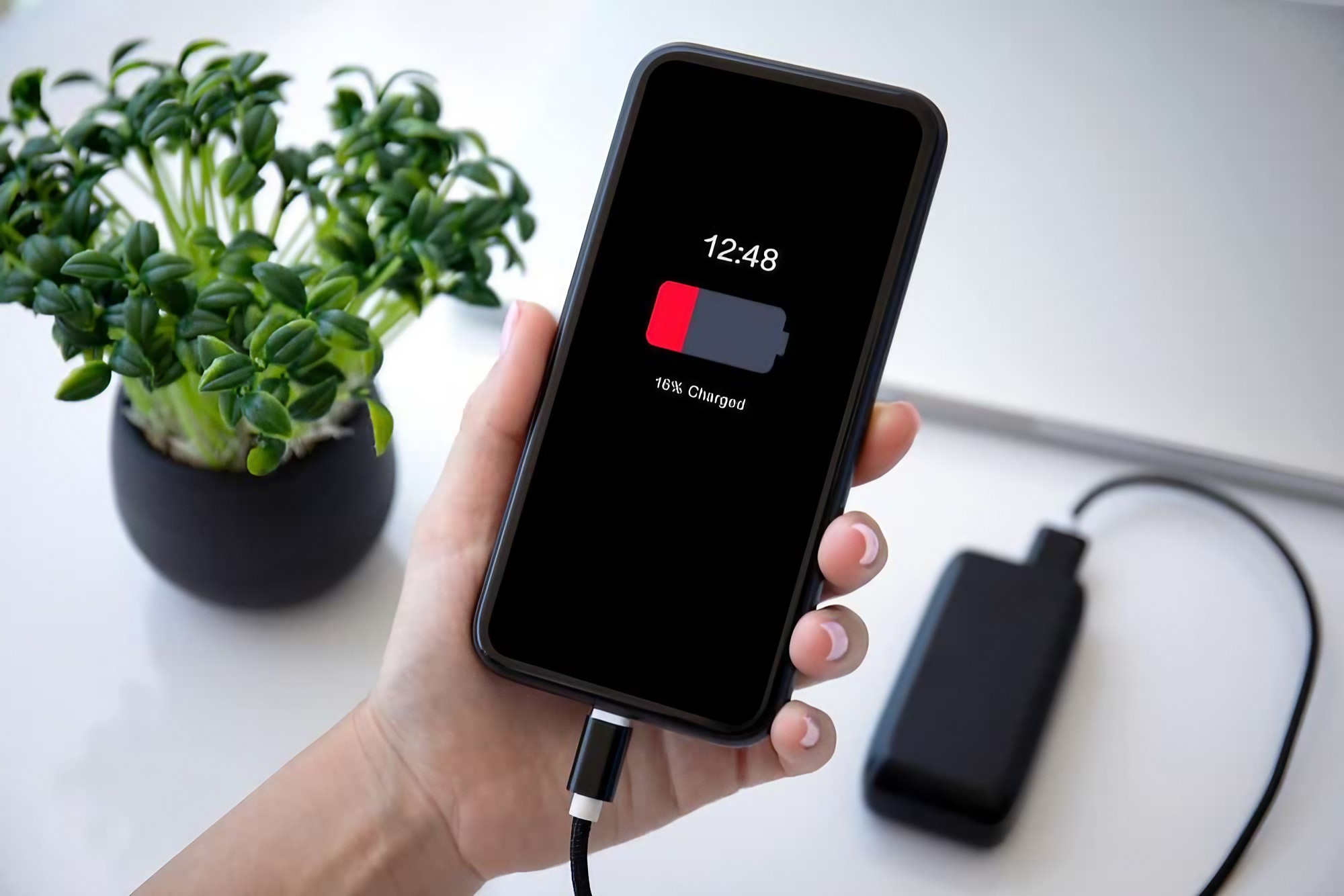
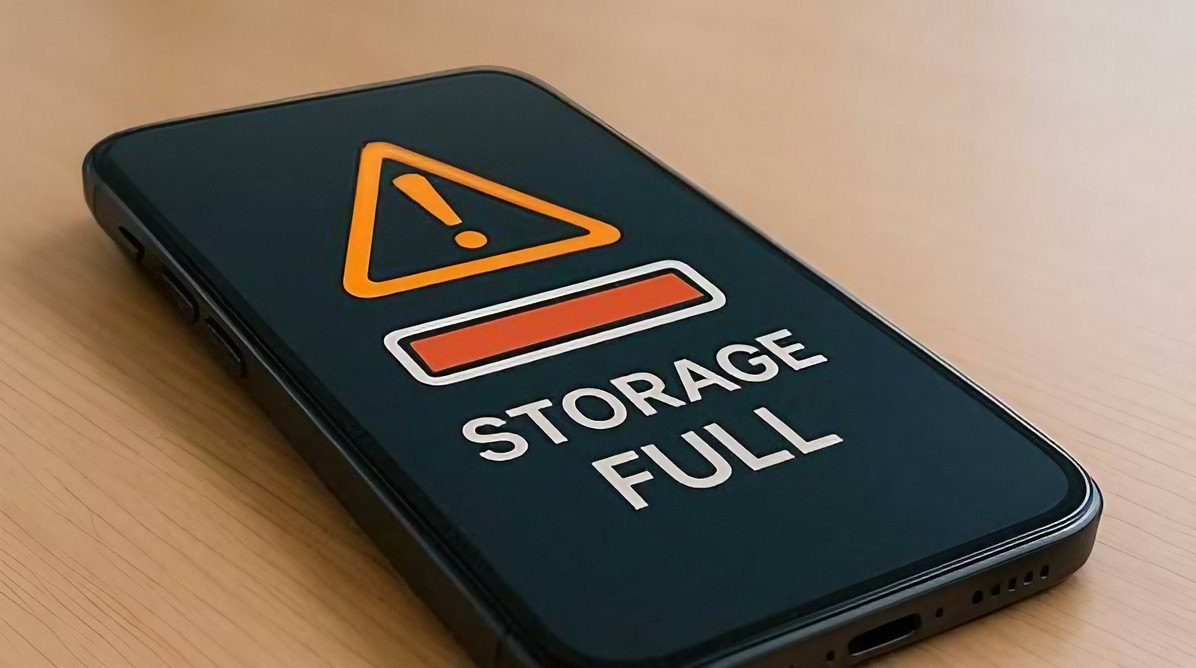
5. Check Your Phone's Storage
Sometimes the Play Store isn't the real problem. Your phone may simply be running out of storage. When there isn't enough free space, Android may be unable to install or update applications. Open your phone's storage settings and check how much space is available.
If your storage is nearly full, remove large files, unused applications or downloaded media that you no longer need. Be careful before deleting photographs or important documents. Once you have created some free space, return to the Play Store and try the installation again.
6. Update Android and Google Play
Software updates can fix bugs and compatibility problems. Check your phone's system update section and install any available Android update if appropriate. You should also keep Google Play services and other core Google components updated through the normal update process available on your device.
Don't download random APK files from websites claiming to provide a "special Play Store update." That can create a much bigger security problem. Use the update mechanisms already provided by your phone whenever possible.
7. Don't Reset Your Phone Unless You Really Need To
A factory reset is sometimes suggested as a solution for almost every Android problem. For a Play Store error, that should be one of your last options. A factory reset removes personal data and returns the device to a fresh setup state.
If Google is experiencing a server-side problem, resetting your phone will not repair Google's servers. Even when the problem is on your device, there are many simpler troubleshooting steps to try first. Only consider a factory reset after you've identified a broader device problem and backed up your important information.
What Does a 500 Error Actually Mean?
A 500 error is generally an HTTP server error. In simple terms, your phone successfully reached a service, but something went wrong while that service was processing the request. That's different from an error caused by having no internet connection.
Think of it like visiting a shop and finding the doors open, but the computer system behind the counter isn't working. You can reach the shop, but the service you're trying to use cannot complete your request. That's why a Play Store 500 error can sometimes disappear without you changing anything on your phone. The service provider may simply need to repair the problem on its side.
What Should You Do If Google Play Is Down?
If you have confirmed that Google Play is experiencing a wider outage, don't make unnecessary changes to your phone. You can try the basic checks above, but there may be nothing wrong with your device.
Instead, wait for the service to recover and check again later. This is particularly important when you see a 500 error while other internet services continue working normally. During today's reported incident in India, users experienced problems downloading and updating applications while their internet connections remained functional. That distinction can save you a lot of unnecessary troubleshooting.
Quick Checklist
Check whether Google Play is experiencing a wider outage.
Test your Wi-Fi or mobile data.
Restart your Android phone.
Check automatic date and time.
Clear the Play Store cache.
Check available storage.
Install official Android updates.
Avoid downloading unofficial Play Store APKs.
Don't factory-reset your phone just for a temporary server error.
The Bottom Line
A Google Play Store problem doesn't always mean something is wrong with your Android phone. Sometimes the problem is your connection. Sometimes it's temporary app data. Sometimes your phone doesn't have enough storage.
And sometimes, as today's 500-error reports demonstrate, the problem can be on Google's side. The smartest approach is therefore not to try every fix you find online. Start by identifying where the problem is. If Google Play is down for many users, wait.
If the problem only affects your phone, work through the simple fixes one at a time. That approach is faster, safer and much less frustrating than immediately resetting your entire device.
Helpful answers
Frequently Asked Questions
Why is Google Play Store not working today?+
Google Play problems can be caused by a service outage, connection issue, corrupted temporary data, insufficient storage or other device-related problems. On September 1, 2026, users in India reported Play Store problems including 500 errors and difficulties downloading or updating apps.
What does Google Play Store error 500 mean?+
A 500 error generally means that a server encountered an internal problem while processing a request. It can therefore indicate a problem on Google's side rather than a problem with your Android phone.
How do I fix Google Play Store when it is not downloading apps?+
Check your internet connection, restart your phone, check available storage, clear the Play Store cache and make sure your Android software is updated. If many users are experiencing the same issue, the problem may be a Google service outage.
Will clearing Google Play Store cache delete my apps?+
Clearing temporary cache data is different from uninstalling your applications. It is designed to remove temporary files used by the Play Store.
Should I factory reset my Android phone if Play Store is not working?+
No. A factory reset should not be your first solution for a Play Store problem. Try simpler troubleshooting steps first and check whether Google itself is experiencing an outage.
How can I tell if Google Play Store is down for everyone?+
Check Google's official Play status information and reputable outage-reporting services. If many users report problems at approximately the same time, the issue may be service-wide rather than specific to your device.
#Google Play Store#Android#Play Store Not Working#Play Store Error#Android Apps#Google Play#Android Tips#How-To