A slow Wi-Fi connection does not always mean you need a faster internet plan. Router placement, interference, outdated hardware, crowded channels and poor network settings can all affect performance. Here are practical steps you can take to make your home Wi-Fi faster and more reliable.

Few things are more frustrating than paying for a fast internet connection and still watching videos buffer, websites load slowly or downloads take forever. The good news is that your internet plan is not always the problem.
Your Wi-Fi connection is affected by everything between your router and your devices. Walls, furniture, distance, interference from neighboring networks, old equipment and even the location of your router can reduce performance.
Before spending money on a new router or upgrading your broadband plan, it is worth checking the basics.
In many homes, a few simple changes can noticeably improve Wi-Fi performance.

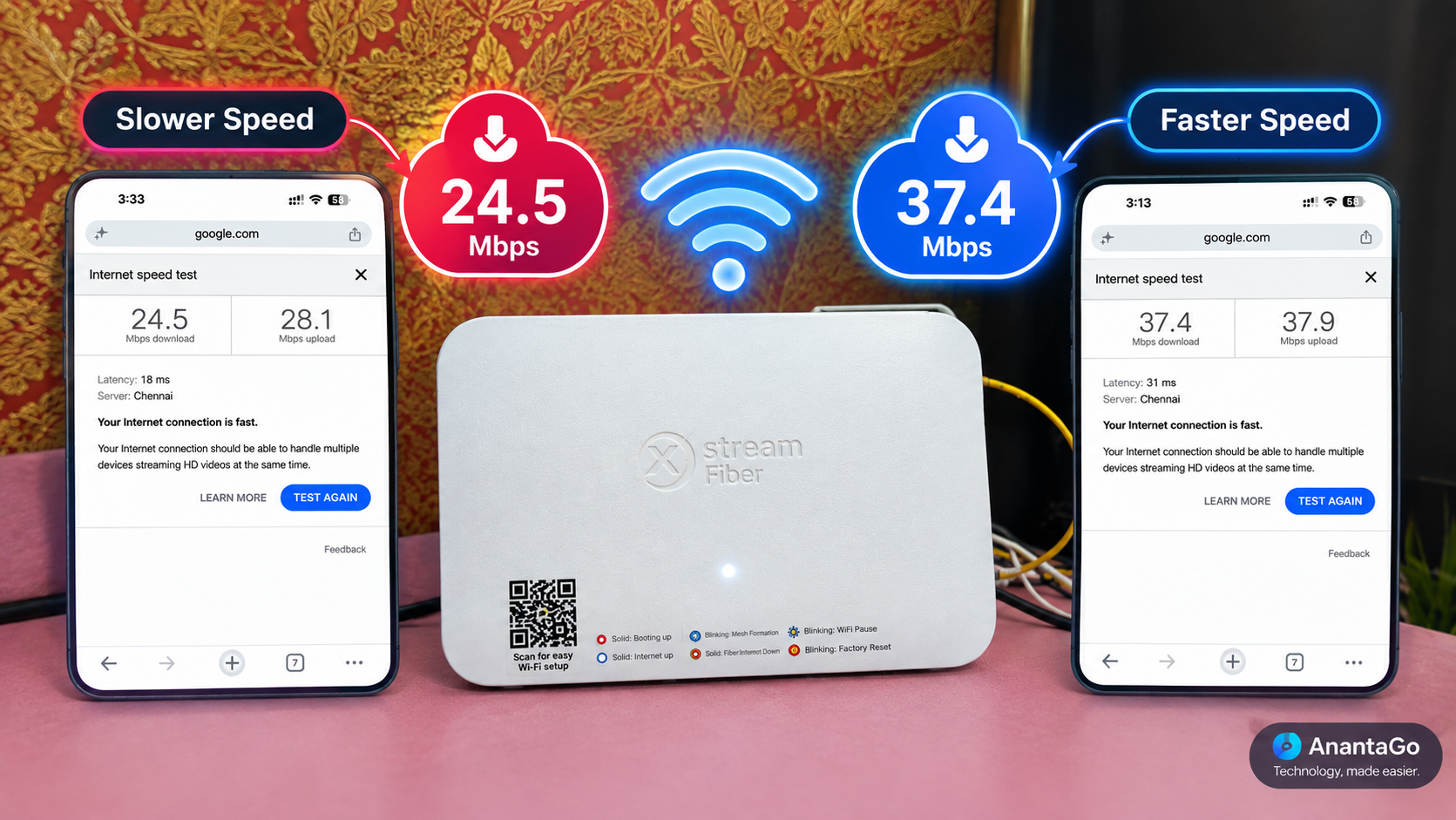
Start by finding out whether the problem is your internet connection or your Wi-Fi network. Connect a laptop or desktop computer directly to the router with an Ethernet cable if possible. Then run a reputable internet speed test. Compare the result with the download and upload speeds included in your broadband plan. If the wired connection is already much slower than expected, changing Wi-Fi settings probably will not solve the main problem. You may need to contact your internet provider. If the wired connection is fast but Wi-Fi is slow, the problem is more likely inside your home network.

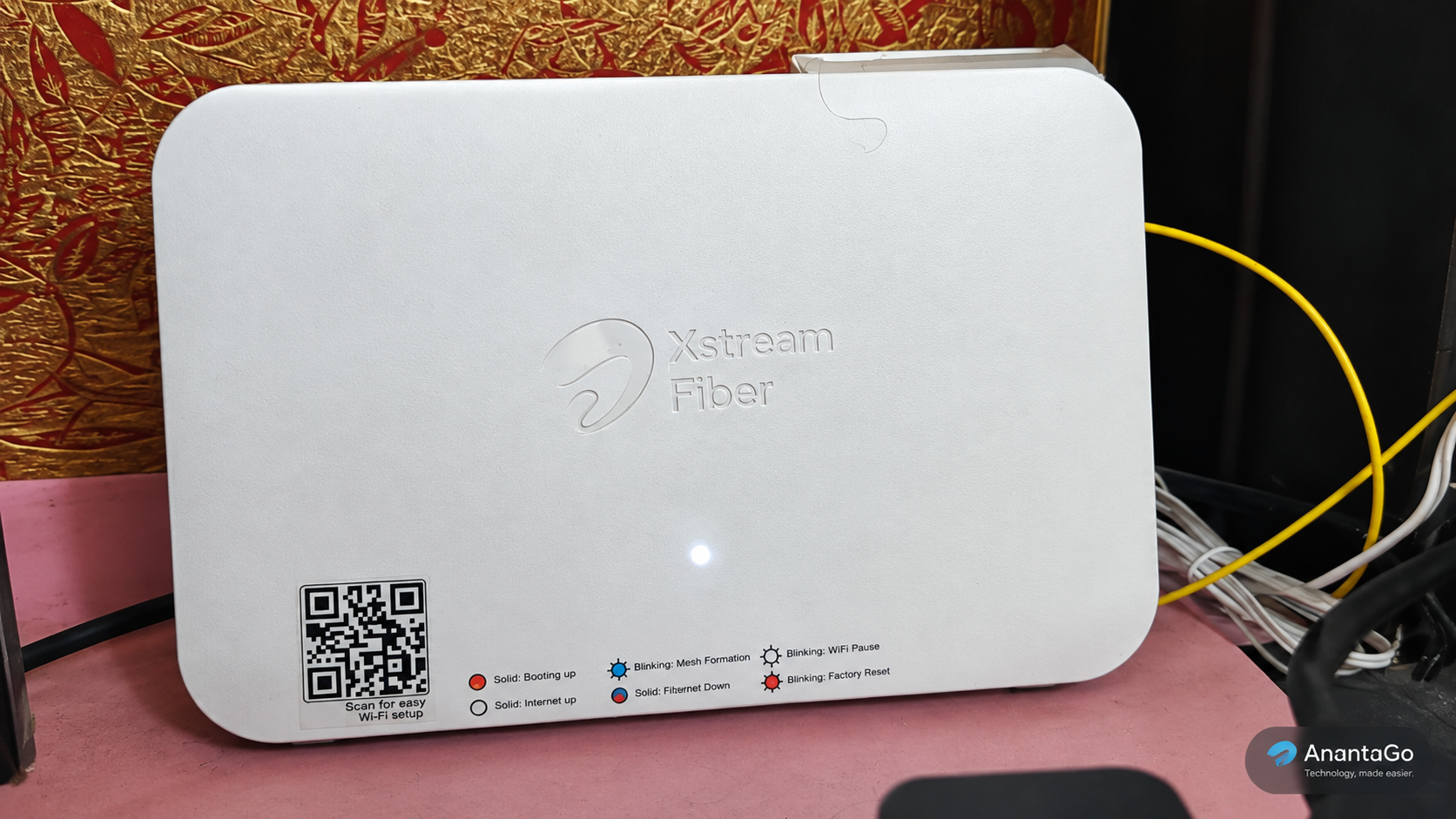
Router placement can make a surprisingly large difference. Avoid hiding your router inside a cabinet, behind a television or underneath a desk. Wi-Fi signals need to spread through your home, so placing the router in an open and reasonably central location is usually better. If your router is sitting at one end of the house, devices on the opposite side may receive a weaker signal. Keep it away from large metal objects and appliances that can interfere with wireless signals.If your router has external antennas, positioning them according to the manufacturer's recommendations can also help.

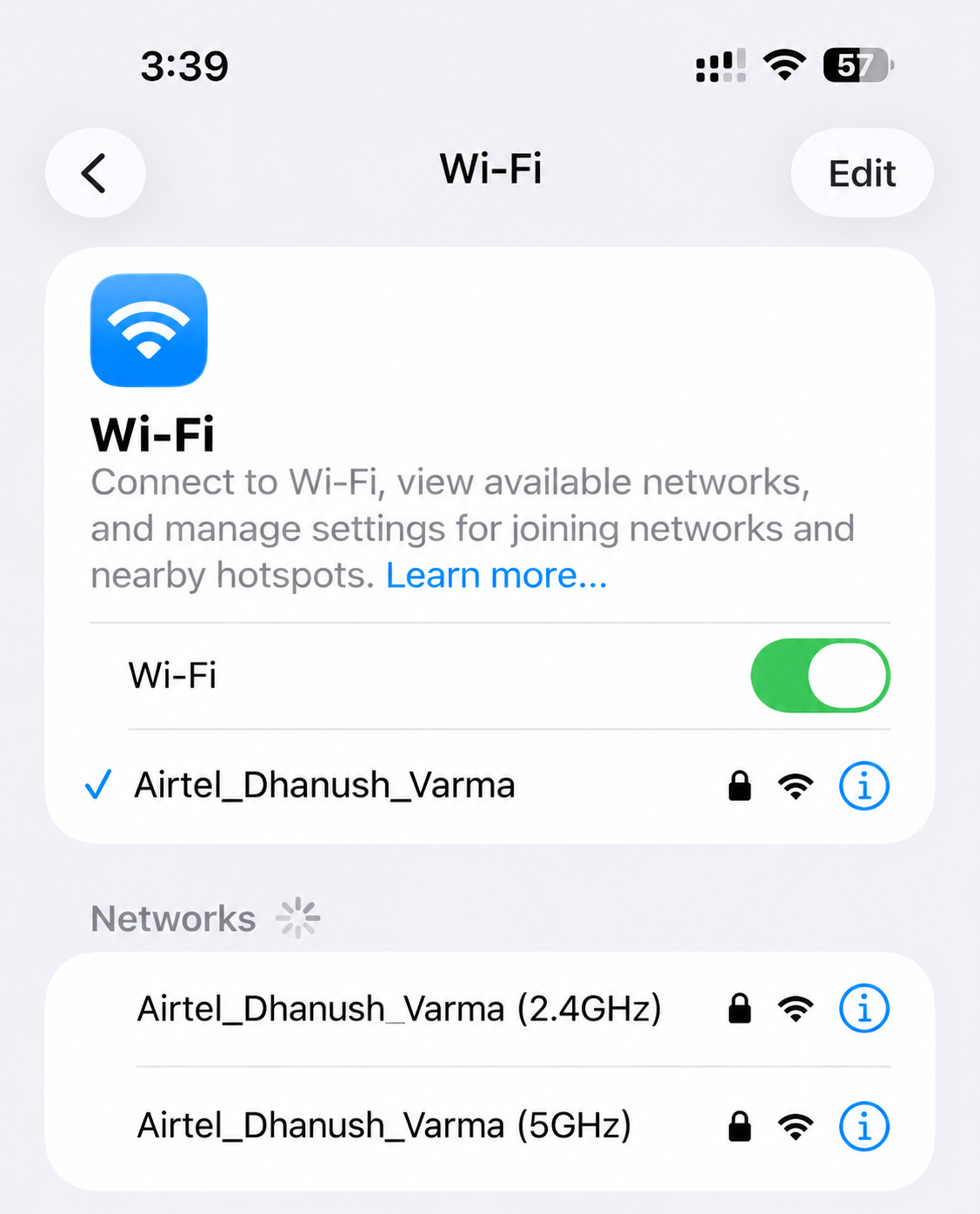
Modern routers often broadcast on multiple frequency bands. The 2.4GHz band generally travels farther and can work better through walls, but it is also more crowded. The 5GHz band usually provides higher speeds at shorter distances. Newer routers may also support 6GHz through Wi-Fi 6E or Wi-Fi 7-compatible equipment. If your device is close to the router, using a faster band can improve performance. If you are far away or separated by several walls, a lower-frequency band may provide a more stable connection. The best option depends on your home layout and the capabilities of your router and devices.
Routers are small computers, and like other computers, they can occasionally develop software problems. If your Wi-Fi has become unusually slow or unstable, restart the router. You should also check whether your router has a firmware update available. Firmware updates can improve stability, fix security vulnerabilities and sometimes improve compatibility with newer devices. Do not interrupt a firmware update once it has started. Follow the instructions provided by your router manufacturer.

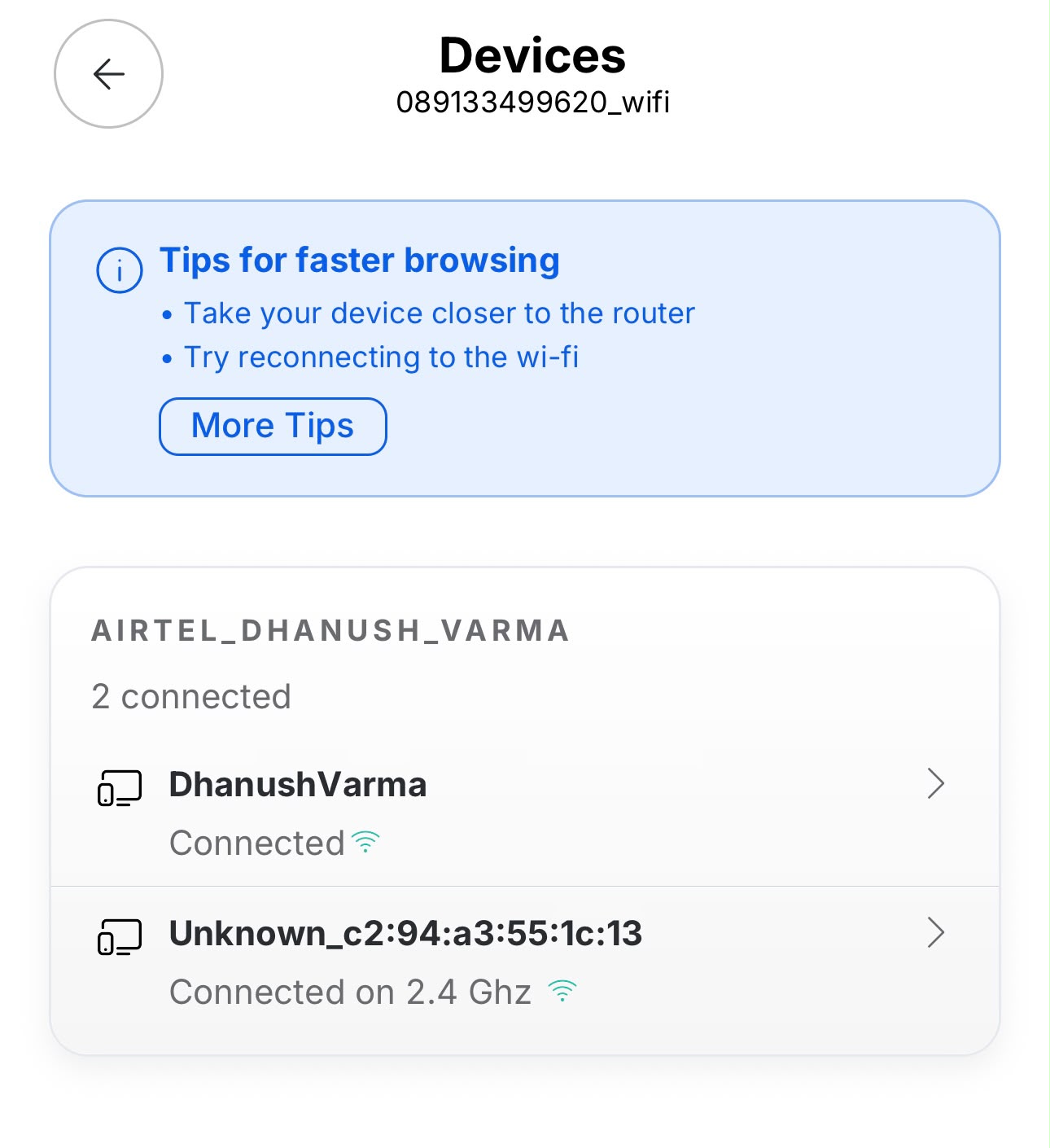
Sometimes the Wi-Fi itself is not the problem. A single device can consume a large amount of bandwidth by downloading games, synchronizing cloud files, streaming high-resolution video or installing a major software update.Open your router's administration page or mobile app and look at the connected-device list. If you see an unfamiliar device, investigate it. If you no longer use a device, disconnect it from your network. You can also prioritize important devices if your router supports Quality of Service, commonly called QoS.
Apartments and densely populated neighborhoods can contain dozens of nearby wireless networks. Other electronics can also contribute to wireless interference. If your router allows you to choose wireless channels, automatic channel selection can often be useful. For advanced users, a Wi-Fi analyzer can show nearby networks and help identify crowded areas. The goal is not to constantly change channels. Instead, identify whether interference is actually contributing to your problem before changing settings.
If only one phone, laptop or tablet has a poor connection while everything else works normally, the problem may be specific to that device. Try turning Wi-Fi off and on again. If that does not help, forget the wireless network and reconnect using the correct password. On computers, updating the wireless network driver can also help. If every other device performs normally, replacing your entire router is probably unnecessary.
If your home is large or has thick walls, one router may simply not provide sufficient coverage. A mesh Wi-Fi system uses multiple nodes placed around the home to provide broader wireless coverage. This can be useful for multi-floor homes, long apartments and buildings where the router cannot be positioned centrally. However, mesh Wi-Fi is not automatically faster. If your broadband connection is slow, adding mesh nodes will not increase the speed supplied by your internet provider. The main benefit is usually better coverage and a more consistent connection throughout the home.

Sometimes the router really is the problem. Very old routers may lack newer Wi-Fi standards, security features and efficient ways of managing multiple devices. Consider replacing your router if it frequently disconnects, cannot handle the number of devices in your home, lacks security updates or consistently performs poorly even after troubleshooting. You do not necessarily need the most expensive router available. Choose one that supports the Wi-Fi standard your devices can use and provides enough coverage for your home.
Improving home Wi-Fi does not always require expensive equipment. Start with the basics: test your connection, move the router, check connected devices, update the firmware and make sure your devices are using an appropriate Wi-Fi band. If the problem is coverage rather than internet speed, a mesh system may help. If your router is outdated, upgrading to newer hardware can make sense. Most importantly, diagnose the problem before spending money. A faster internet plan cannot fix poor Wi-Fi coverage, and a new router cannot fix a slow connection coming from your internet provider. Once you identify where the problem actually exists, finding the right solution becomes much easier.
Keep Reading

How-To
Why is my battery draining fast? Before replacing your phone, check these seven common causes and learn how to find what's actually using your battery.

How-To
Google Play Store users can sometimes face download, update and server errors. Here's what the 500 error means and what you can try when the Play Store stops working.

How-To
Think someone may have accessed your Google account? Here's how to check recent devices, sign-in activity and security settings, and what to do if you find something suspicious.

How-To
Running out of storage on your Android phone? These simple steps can remove unnecessary files, clear temporary data and recover space without deleting the photos, videos and apps you actually need.